
Install with Atlas Manager
On this page
Atlas Manager guides you through installing Atlas on Windows. Read the requirements first. If you already have Atlas installed, use the upgrade guide instead.
Prefer AME Wizard? Follow Install with AME Wizard.
1. Prepare a fresh Windows installation
Back up your files and save your network drivers. Install Windows 11 25H2 (build 26200) from unmodified Microsoft media, using an edition you have a licence for.
Follow Microsoft’s clean installation instructions. Check the target drive carefully before deleting partitions. Complete Windows setup and sign in before opening Atlas Manager.
You can also create an Atlas ISO with Manager. That route includes Manager and the playbook in your installation media, then opens setup on the destination PC.
Already on fresh Windows 25H2?
If you have just installed a supported copy of Windows, continue below. You do not need to reinstall it again. Restore your apps and personal settings after Atlas finishes.
2. Open Atlas Manager
Download Atlas Manager from the Atlas release page and open AtlasManager.exe. Allow administrator access when prompted, then choose Install Atlas.
In Get ready, Manager checks your PC and prepares the installation files. If needed, choose Download latest version. To use a package you already downloaded, choose Open playbook file and select the release’s .apbx file. You do not need to extract the playbook or install AME Wizard.
Check that Manager shows the version you intend to install. Resolve any failed PC checks, then choose Check again.
3. Update Windows and Store apps
Choose how drivers should be installed:
- Get drivers through Windows Update lets Windows find drivers for your hardware.
- Install drivers myself blocks driver downloads from Windows Update. You will need to install the drivers yourself. Drivers already installed remain in place.
Choose Check and install updates. Manager installs recommended Windows updates, updates Microsoft Store, and finishes updates for installed Store apps. Save your work first: Store apps may close during this step.
Preparation excludes optional preview updates and Windows feature upgrades. It will not move an unsupported Windows installation to 25H2 for you.
If a restart is needed, choose Restart and continue. After signing back into the same account, Manager restores your choices. Choose Continue updates and let it check again. Repeat until preparation completes.
Manager did not reopen?
Open Atlas Manager manually and continue setup. If updates failed, resolve the error shown before retrying. See installation troubleshooting.
4. Choose your Atlas settings
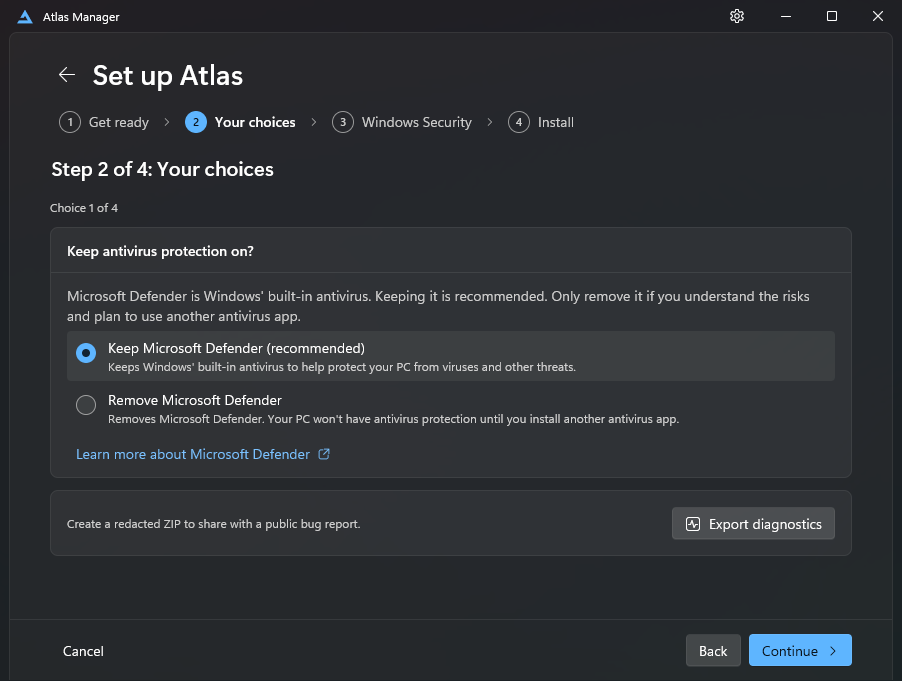
Review each choice, including Microsoft Defender, CPU mitigations, automatic Windows updates, optional apps, and power settings. Read the explanation beside each option before changing it.
These choices define how Windows behaves after installation. The configuration guide explains the controls available afterwards.
5. Complete the Windows Security step
When Manager asks, open Windows Security → Virus & threat protection → Manage settings. Turn off the switches it lists, starting with Tamper Protection:
- Tamper Protection
- Real-time protection
- Cloud-delivered protection
- Automatic sample submission
Return to Manager and wait for the checks to update. If a switch cannot be read, check it yourself before confirming. If Defender was removed by an earlier Atlas installation, follow Manager’s instructions for that state.
This temporary installation step is separate from your choice to keep or remove Defender after installation. If you abandon setup, turn the protections back on.
6. Install and restart
Review your choices and start installation. Keep your PC on, plugged in, and connected. Manager checks readiness again before applying changes.
When installation succeeds, Manager starts a restart countdown. Use Restart now, or Restart later if you need to save work first. Restarting completes setup.
After signing in, confirm Manager shows Atlas as installed, then follow First setup.
If installation does not finish
Read the reported error and export diagnostics before retrying or deleting anything. Some changes may already have been applied. Reopen Manager to recover an interrupted session and follow its instructions; do not start a second installer alongside it.
See installation troubleshooting for recovery and reporting steps.